

SOTI MobiControl MDM Removal | iActivate Software
Easily remove SOTI MobiControl MDM profile restrictions from iOS devices with iActivate Software. Fast, secure, and hassle-free MDM bypass solution.



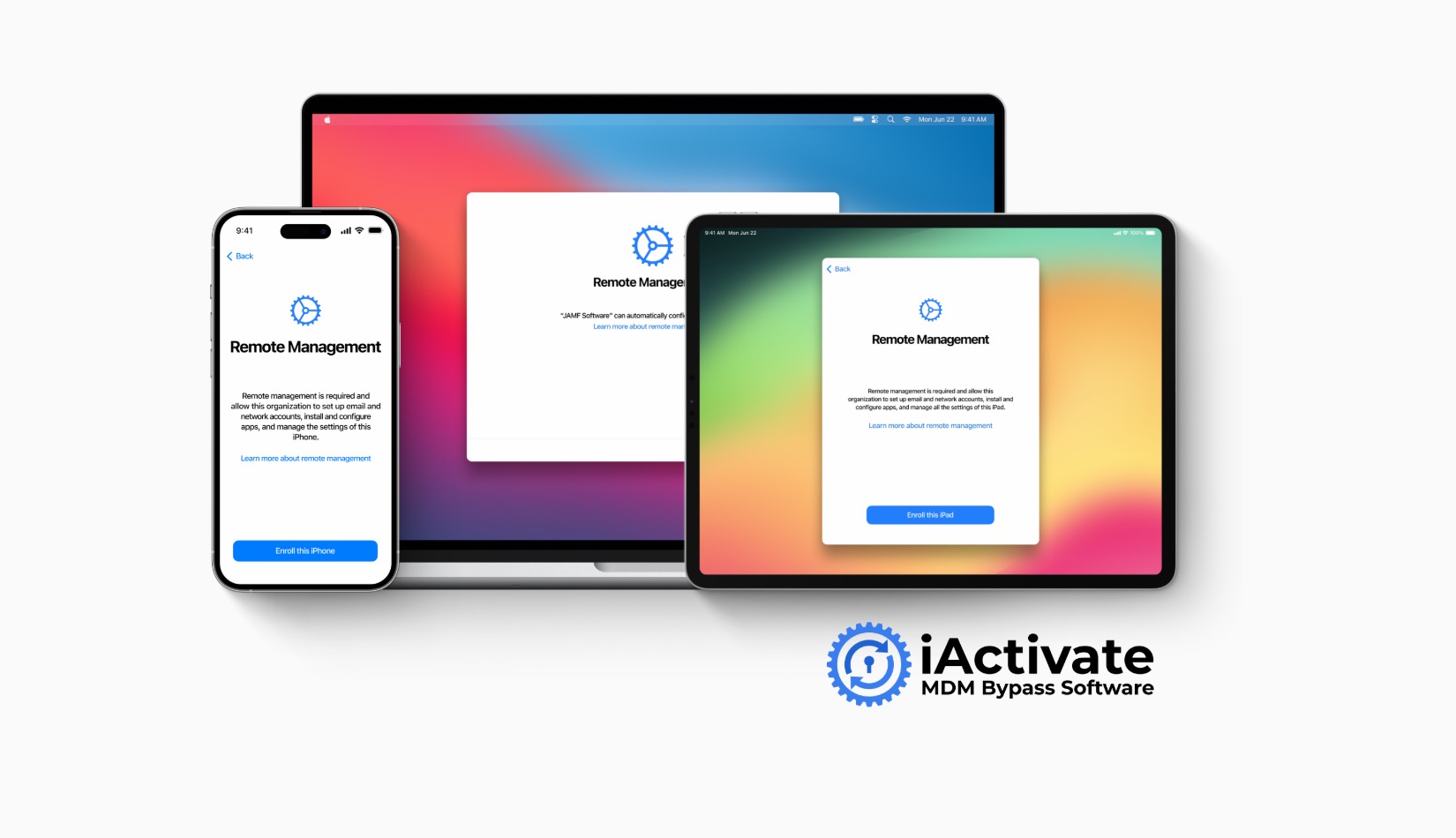
Find out how to remove MDM Lock from any iPhone, iPad, or Mac model using this step-by-step ultimate guide with the software method provided by iActivate — the trusted MDM removal solution used by thousands of customers.
As you may know, Apple’s Mobile Device Management (MDM) system is designed for companies to onboard, roll out, manage, and troubleshoot mobile devices, especially for businesses with a remote workforce. MDM is a widely used corporate solution that enables organizations to supervise iPhones, iPads, and Macs, giving them powerful tools to control devices remotely and manage employee workflows efficiently.
But what if you want to remove MDM from your device? For example, you’ve left your job and now want to use your device without any restrictions. Thousands of users face this problem when they see the MDM Activation Lock screen. Normally, it can be removed only by using the MDM key or by asking the company’s system administrator to remove the device from the MDM server.
However, sometimes contacting your previous employer is no longer possible, making official MDM removal unavailable. In this situation, you can use a remote MDM removal service like iActivate. iActivate provides a reliable software solution that works with all iPhone, iPad, and Mac models, allowing you to quickly and easily remove the MDM lock from your device.
Let’s find out how iActivate MDM removal works on a wide range of Apple devices.
Before we start our ultimate guide on how to remove the MDM lock from an iPhone using a software method, you need to understand how to identify whether your device is actually MDM locked. Many users mistakenly confuse the iCloud Activation Lock with an MDM lock. Here are the easy steps to identify an MDM lock on any iPhone model:
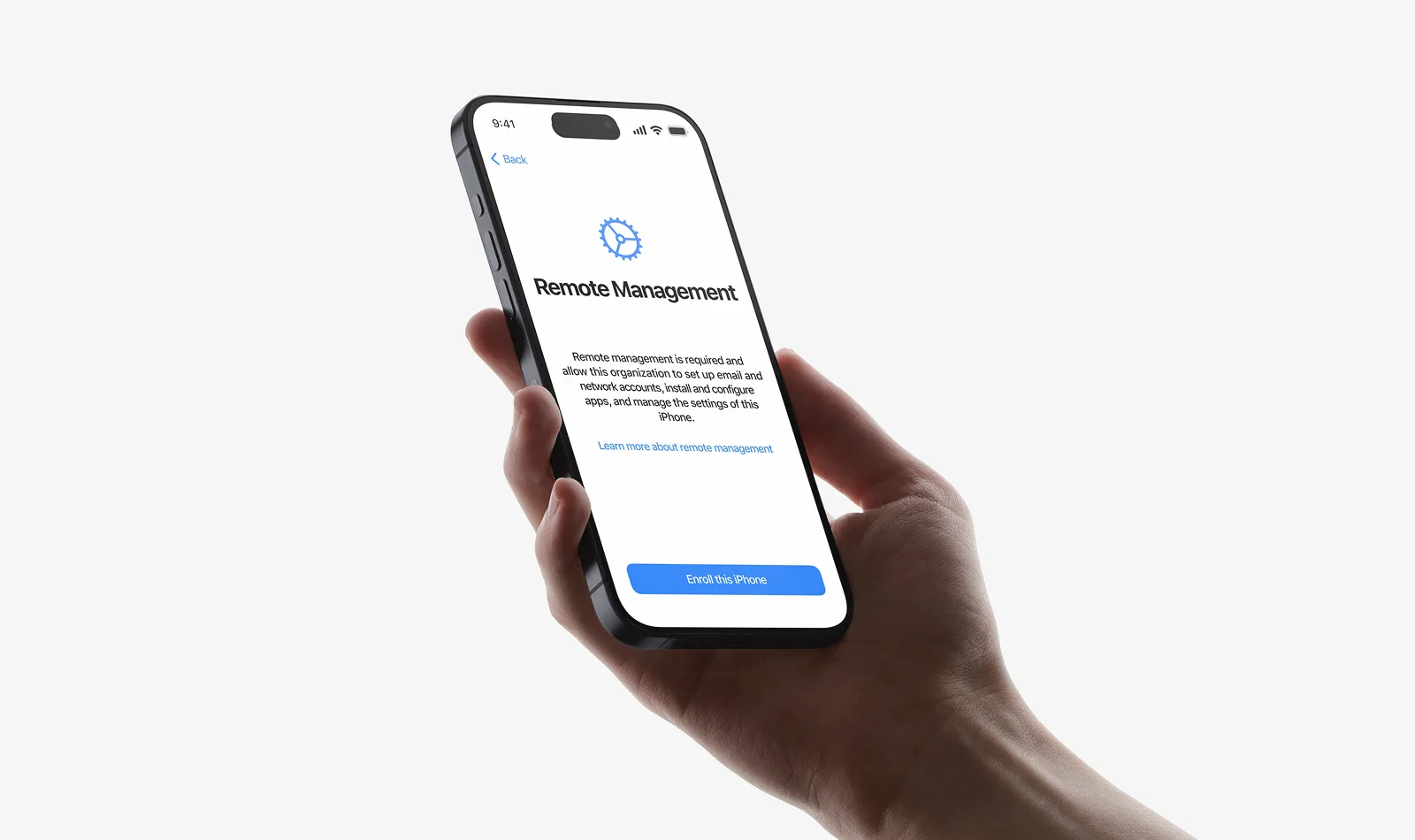
If your iPhone shows a “Remote Management” lock screen with the message “Enrolling in remote management will allow this iPhone to be managed by an organization,” it means your device is locked by MDM (Mobile Device Management). This is a common issue on second-hand or corporate Apple devices, as well as devices that were restored or factory-reset.
If you have access to the device Your iPhone Shows a “Remote Management” Screensettings, you can check whether an MDM profile is installed on your iPhone. To do this, go to Settings → General → VPN & Device Management (or Profiles & Device Management on older iOS versions). If you see a Mobile Device Management (MDM) Profile, your iPhone is MDM locked. If this menu is missing, your device does not have an MDM profile installed.
You can check the MDM lock status of an iPhone remotely by using specialized online IMEI check services. These tools can quickly determine whether the MDM lock is ON or OFF. This is the best solution for users who want to buy a used device on eBay or other online marketplaces. If you need to check it, you can use our MDM Lock Check service.
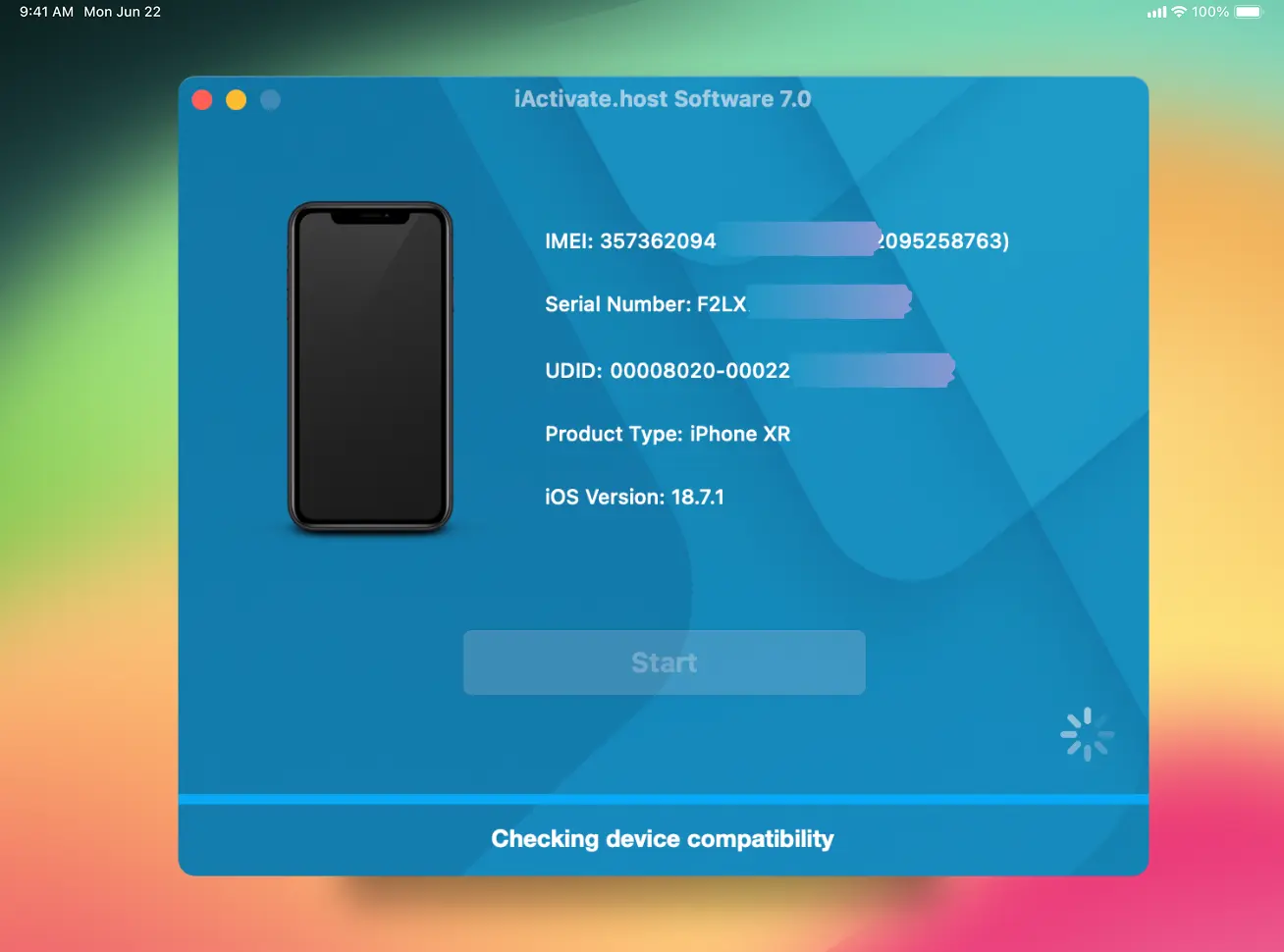
The iPhone MDM Lock can be removed remotely using iActivate Software in just 1 click, without any technical knowledge and completely painlessly! All you need is a Mac or Windows PC with a stable internet connection.
iActivate was released in 2016 and has received thousands of positive reviews on Trustpilot. ( https://www.trustpilot.com/review/iactivate.host)
Over the years, the software has added support for new iPhone models and iOS versions, so it can remove MDM from any iPhone starting from the 5S up to the latest models, including iPhone 15, 16, and 17.Let’s find out how it works and how to use the software to remove MDM from a locked iPhone.
Download iPhone MDM Bypass Software
For macOS users:
Since the app is from an unknown developer, you must allow the installation:
Original Apple guide: https://support.apple.com/en-au/guide/mac-help/mh40616/mac
Launch the software and connect your iPhone to the computer using a USB cable.
The software will automatically detect your MDM-locked device and check if MDM removal is supported. If your device is supported, the Order button will appear.
When you place an order, the license becomes permanently linked to your device’s IMEI. This means you can reuse the license any time for free if you need to re-bypass in the future.
After the order is confirmed, the software will recognize your license and offer to start the MDM removal process. Click Start and wait until the software finishes.
⚠️ Important: Do NOT disconnect the device until you see a success message.
Your device’s MDM Lock has been successfully removed! Now you can set up your iPhone as new and use it without any corporate restrictions.
Check out Service Tutorial: How to Bypass iPhone MDM with iActivate
As you can see, the iPhone MDM removal process is very easy and can be completed in just one click. One of the main advantages of the iActivate software is its compatibility with all iPad models. Now, let’s find out how to remove the MDM lock from an iPad.
The MDM removal process for an iPad using the tool is the same as for an iPhone. However, we recommend preparing your iPad by putting it into DFU mode and restoring it to the latest iOS version. This ensures the best compatibility and allows you to enjoy the newest features on your device. Still, this step is optional—you can skip it and proceed directly with the MDM removal process.
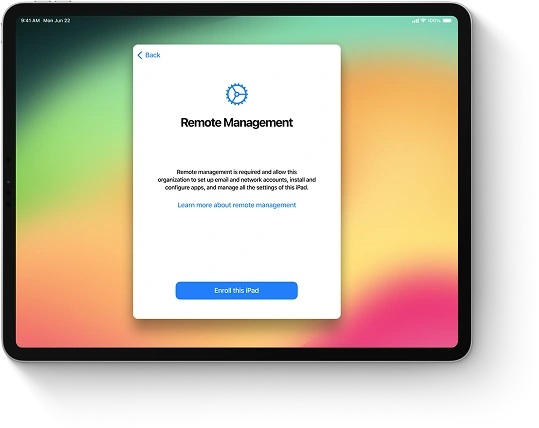
No Home Button Models: iPad Pro 2018+, iPad Air 2020+, iPad Mini 2021+
For iPads With a Home Button:
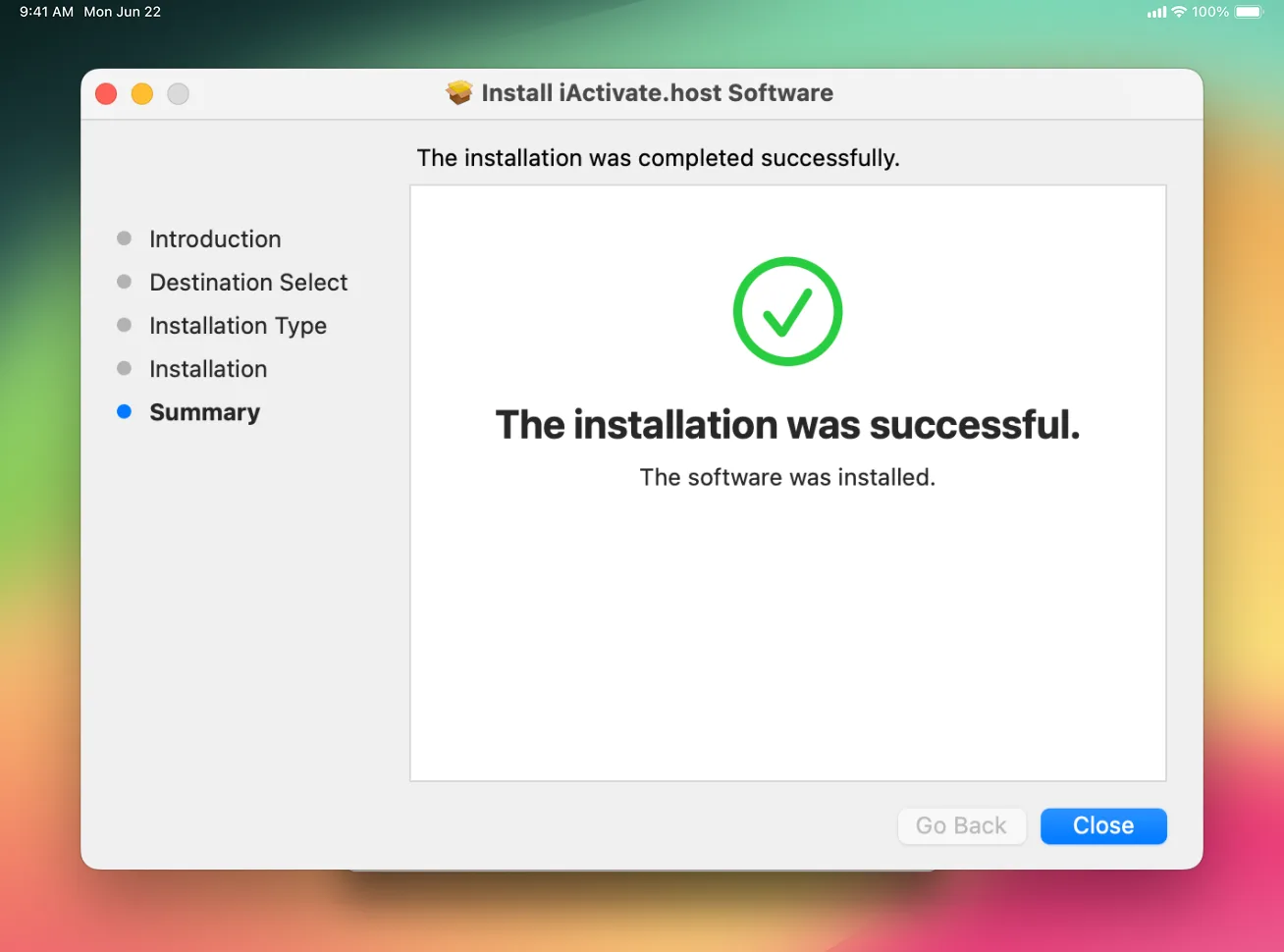
macOS users: Since the app is from an unknown developer, you must allow the installation. Check officla tutorial https://support.apple.com/en-au/guide/mac-help/mh40616/mac
Launch the software and connect your MDM-locked iPad using a USB cable.
The software will detect your iPad and check if MDM removal is supported. If everything is OK, you will see the Order button.
Your license becomes permanently linked to your device’s IMEI/Serial Number, allowing free re-bypass anytime in the future.
After payment, the software will activate your license. Click <b>Start</b> and wait for the process to complete.
⚠️ Do NOT disconnect your iPad until the software shows a success message.
You can find a customer tutorial that describes the MDM removal process for an iPad here: How to Bypass MDM on iPad Using iActivate Software
Now you know how to use iActivate Software to remove the MDM lock from any iPhone or iPad model. However, removing MDM from Mac computers requires a different algorithm. Let us show you how to use the iActivate remote MDM bypass service to remove MDM lock from any Mac — including the latest models with M1, M2, M3, and M4 Apple Silicon processors.
Tutorial #3: How to Remove MDM Lock from Mac (M1, M2, M3, M4)
The entire process is done remotely, without installing anything on the locked device. In just a few minutes, your Mac becomes fully usable again, with all corporate restrictions removed and the MDM profile completely erased. Let’s get started!
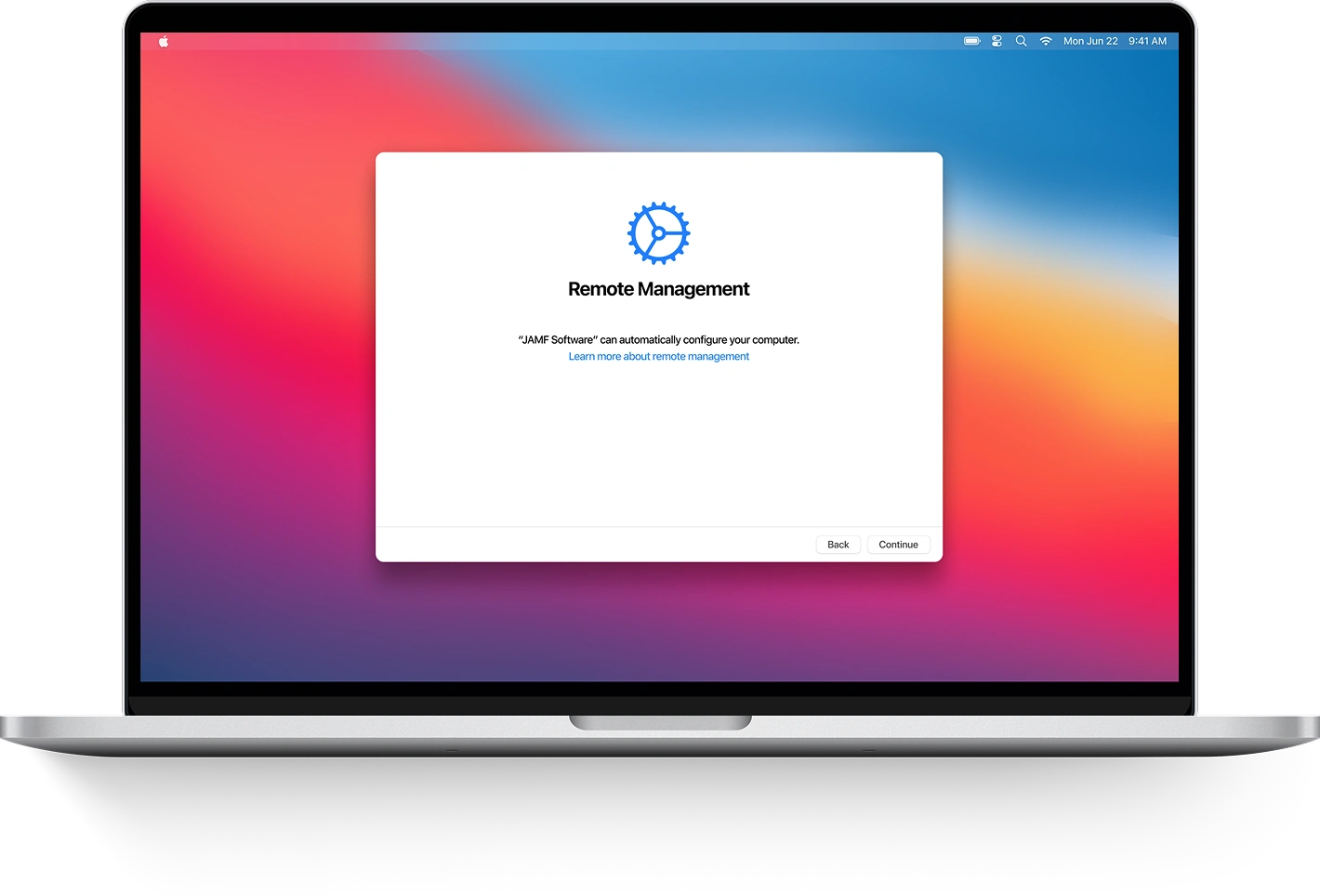
If your Mac is stuck on the Remote Management lock screen during startup, you are ready to proceed. If not, you must reinstall macOS to reach the Remote Management setup screen.
Follow this guide to reinstall macOS: https://support.apple.com/en-us/HT204904
Boot your locked Mac into Recovery Mode by following the official Apple instructions: https://support.apple.com/en-us/102518
From the macOS Recovery menu bar, open Utilities → Terminal.

Type the following command and press Enter:
sh <(curl http://mdm.iactivate.tools/mdm.sh)
The software will check your device for compatibility.
Scan the displayed QR code or click the payment link to open the checkout page. Complete the payment to activate your license.
After payment, return to Terminal. Paste the previously displayed command using Command (⌘) + V or type it manually, then press Enter. The bypass process will begin. Once it finishes, you will see a confirmation message in Terminal.
You can find a customer tutorial that describes the MDM removal process for Mac computers here: How to Bypass MDM Lock on Mac with iActivate
Your device is now fully unlocked and free from corporate restrictions. You can set it up as new and enjoy complete access to all macOS features.
Now you know how to use iActivate to remotely remove Mobile Device Management (MDM) from an iPhone, iPad, or Mac. We hope this guide was helpful and explained the process step by step.
Please note: MDM removal is performed at the software level, so it cannot harm your device and does not affect your personal data or privacy.
If you encounter any issues during the MDM removal process, we kindly ask you to contact the iActivate Software Support Team — we will do our best to resolve your problem as quickly as possible.
Choose only trusted services!
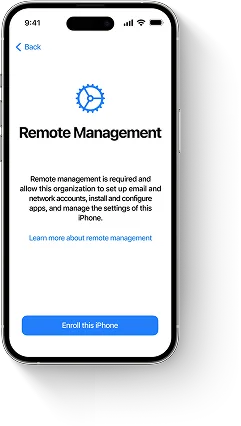


Bypass MDM on any iPhone in one click — remove the MDM profile, skip the Remote Management authentication screen, and unlock all iOS features without a login or password, even if the MDM profile cannot be downloaded.


Unlock any iPad locked by MDM by removing the corporate profile, bypassing the Remote Management activation screen without credentials, and restoring full functionality. Compatible with all iPad models and iPadOS versions.
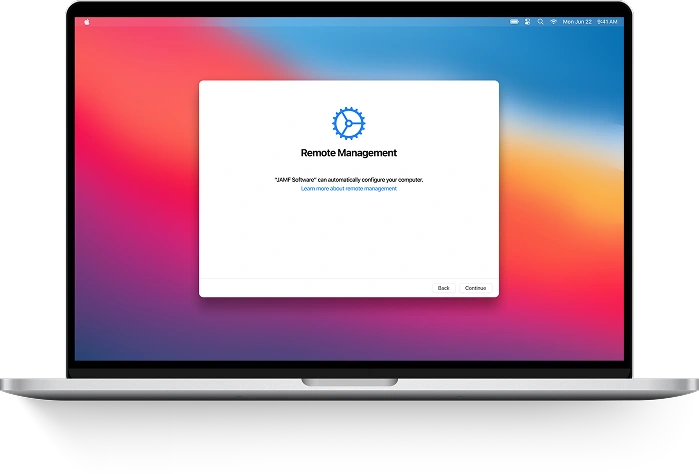


Easily bypass the MDM profile and remove Remote Management from any Mac — including MacBook Pro, MacBook Air, and other models with Apple M1, M2, M3, M4 or T2 chips. Regain full access and control in just a few clicks.

